What is BankScope?
About...
BankScope equips leaders with a unified view of bank performance and external market dynamics. By integrating geographic views, demographic insights, rate intelligence, marketing efforts, and custom analytics, it enables faster, more informed decisions across retail operations, branch optimization, product pricing, and strategic planning. With BankScope, leadership teams can move beyond static reports to explore trends interactively in a competitive, data-driven environment.
What's in the Pipeline...
- Library of publishable reports for boards and management
- Competitor-specific profile pages
- Rate subscription uploads to Rate Hawk
- Rate exception request and approval workflow linked to rate observations
- UBPR loan, risk, summary, and delinquency information
- Saved ‘views’ in Geospatial
- Mass upload for marketing CRM files for Marketing
- Executive summary performance page
- Treasury bids, winners, calendars, and timelines
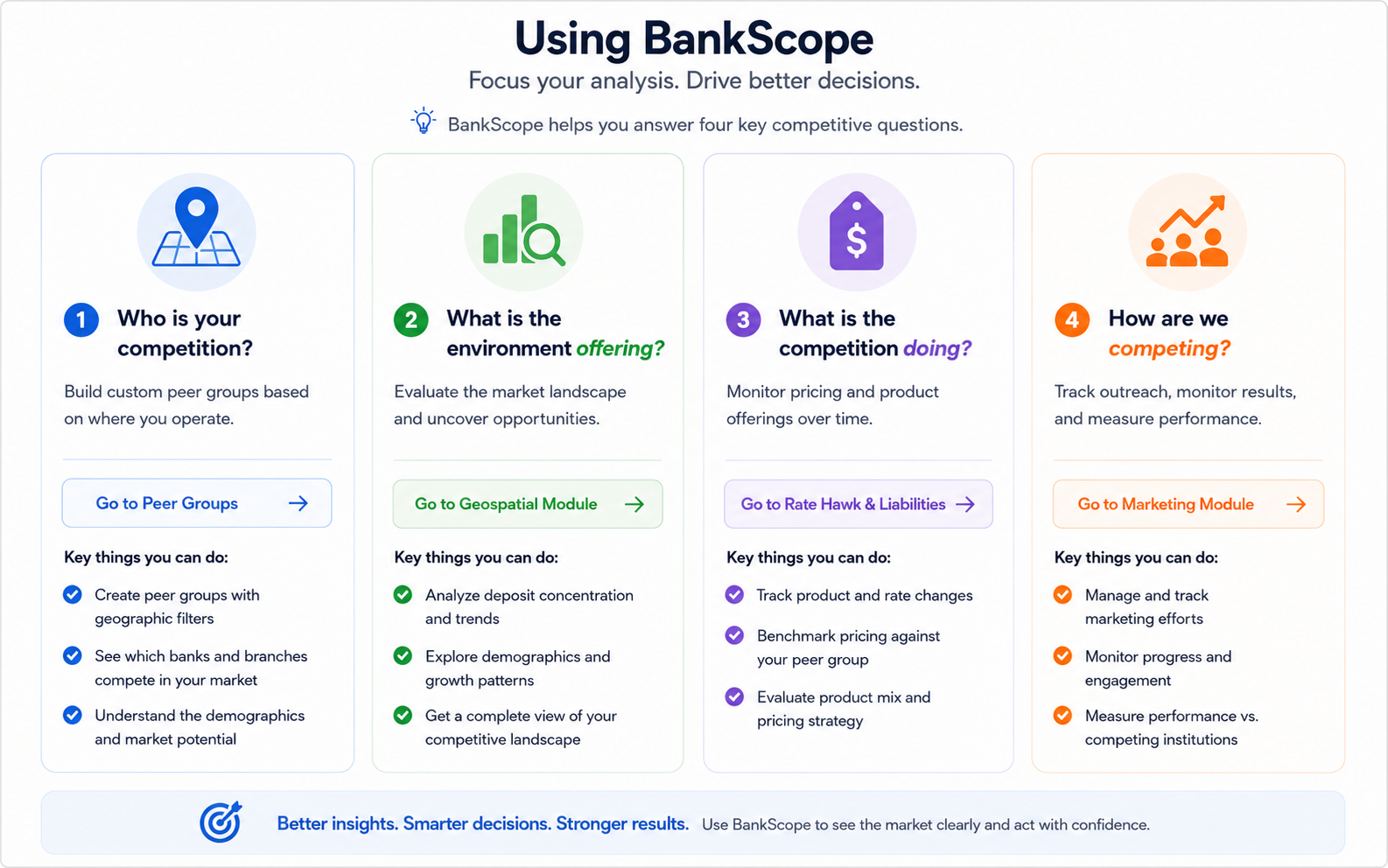
Harvesting your Peer Group...
Filters
Notes
Stats & Measures
Selected Map
Balance Sheet Editor
Assets
Liabilities & Equity
Memoranda Editor & Cash Flow Engine
Memoranda
Cash Flow
Ratio / Diagnostic Outlook
Campaign Description
General Campaign Information
Campaign Dollars Allocated
Campaign Allocations Paid
Effort Description
General Details
Budget & Planning
Tracking of LMI & Minority Efforts
Rate Information
Search Criteria
Discussion of Expectations & Results
Chained Items
Budget & Planning
Financial Inputs
Pro Forma
Actual Results
Vendor Relationship Management
Product Suite
Manage Bank Eployees
Market & Region Creator
Plan Components
Campaign Spend | Budget
Total of expenses incurred (red = over | blue = under)Effort Spend | Budget
Total of expenses incurred (red = over | blue = under)Channel Spend by Effort & Vendor
Total expenses incurred (Effort | Vendor)Rate Leaders
Historical Rate Movement
Daily Spread Against Effective Fed Funds
Market Leader Changes
Treasury Curves
1. Search for the product you want to create.
2. Start with Bank → Product Class → Product Name
3. Click the product in the table to load its attributes.
3. If it needs to be modified, make the necessary changes and select 'Modify Selected Product'.
4. If the product doesn't exist, create it and select 'Save New Product'.
1. Search for the product you've observed.
2. From the dropdowns, start with Bank → Product Class → Product Name
3. If the Product Name doesn't exist in the dropdown, go to the Product Registry and build it.
4. Click the observation in the table you want to use as a template - Don't forget to change applicable details!